
User Profile, Settings, and Dashboards
The fuentis Suite offers extensive personalization options that allow you to tailor your workspace to your individual needs and workflows. From basic profile settings and visual adjustments to customized dashboards – these features are essential for efficient work in the Information Security Management System (ISMS) and other modules of the Suite.
Why is this relevant?
- Efficiency boost: Personalized dashboards and quick access reduce navigation time
- Compliance support: Clear visualization of measures, risks, and requirements in line with ISO 27001
- User-friendliness: Individual adjustments such as dark mode or font size improve ergonomics
- Role-based views: Different dashboards for different responsibilities within the ISMS
Main Concepts and Functional Areas
Section titled “Main Concepts and Functional Areas”1. User Profile – Your Personal Control Center
Section titled “1. User Profile – Your Personal Control Center”The user profile is the central starting point for all personal settings and preferences in the fuentis Suite. It consists of three main areas:
1.1 Personal Data and Profile Picture
Section titled “1.1 Personal Data and Profile Picture”How to access profile settings:
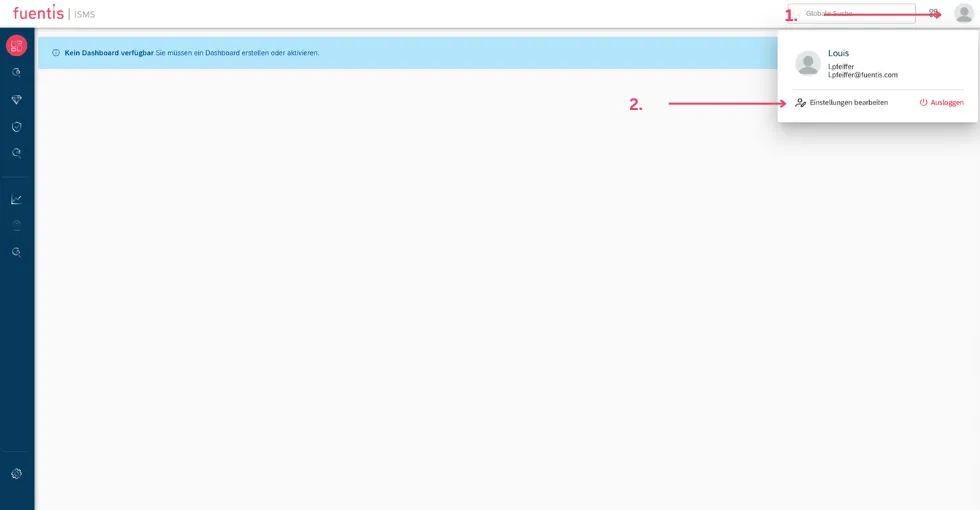
- Click your user icon in the top-right corner of the interface
- Select “Edit settings”
- You will be redirected to your personal user settings
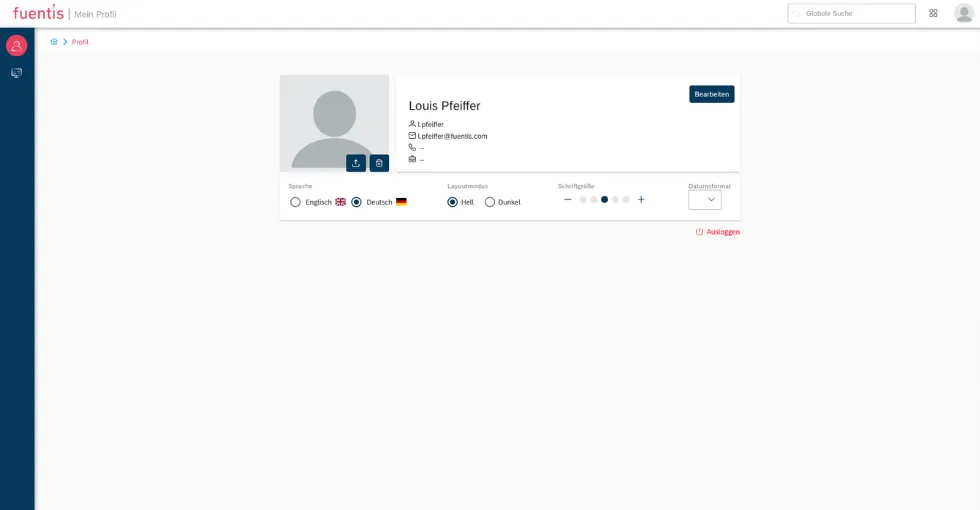
Manageable profile data:
- Profile picture: Upload via upload icon, remove via delete icon
- Contact details: Name, email, phone number, and business information
- Organizational affiliation: Department, position, ISMS responsibilities
Pro tip: A meaningful profile picture and complete contact details simplify collaboration, especially when assigning measures and responsibilities.
1.2 Visual and Functional Adjustments
Section titled “1.2 Visual and Functional Adjustments”Language setting:
- Available languages: German and English
- Instant switch for the entire interface
- Important for international teams and auditors
Dark Mode:
- Reduces eye strain during long working sessions
- Particularly useful in low-light environments
- Switchable anytime in user settings
Font size adjustment:
- Adjustable via plus/minus controls
- Accessibility support for users with visual impairments
- Optimized readability across devices
Date format:
- Multiple international formats (DD.MM.YYYY, MM/DD/YYYY, etc.)
- Important for correct ISMS documentation
- Adaptable to regional or corporate standards
Note: Combining font scaling with browser zoom may cause undesired effects.
1.3 Security and Access
Section titled “1.3 Security and Access”Logout function:
- Securely log out of the fuentis Suite
- Essential for shared workstations
- Protects sensitive ISMS data
2. Dashboards – Module-Specific Overviews
Section titled “2. Dashboards – Module-Specific Overviews”Dashboards are individually configurable overview pages for specific modules such as ISMS or BCMS (Business Continuity Management System), or for the entire application (Launchpad). They provide quick insights into KPIs, statuses, and tasks. Each user can configure multiple dashboards, which must be activated to be visible.
Pro tip: Create different dashboards for specific project phases and activate/deactivate them with a single click.
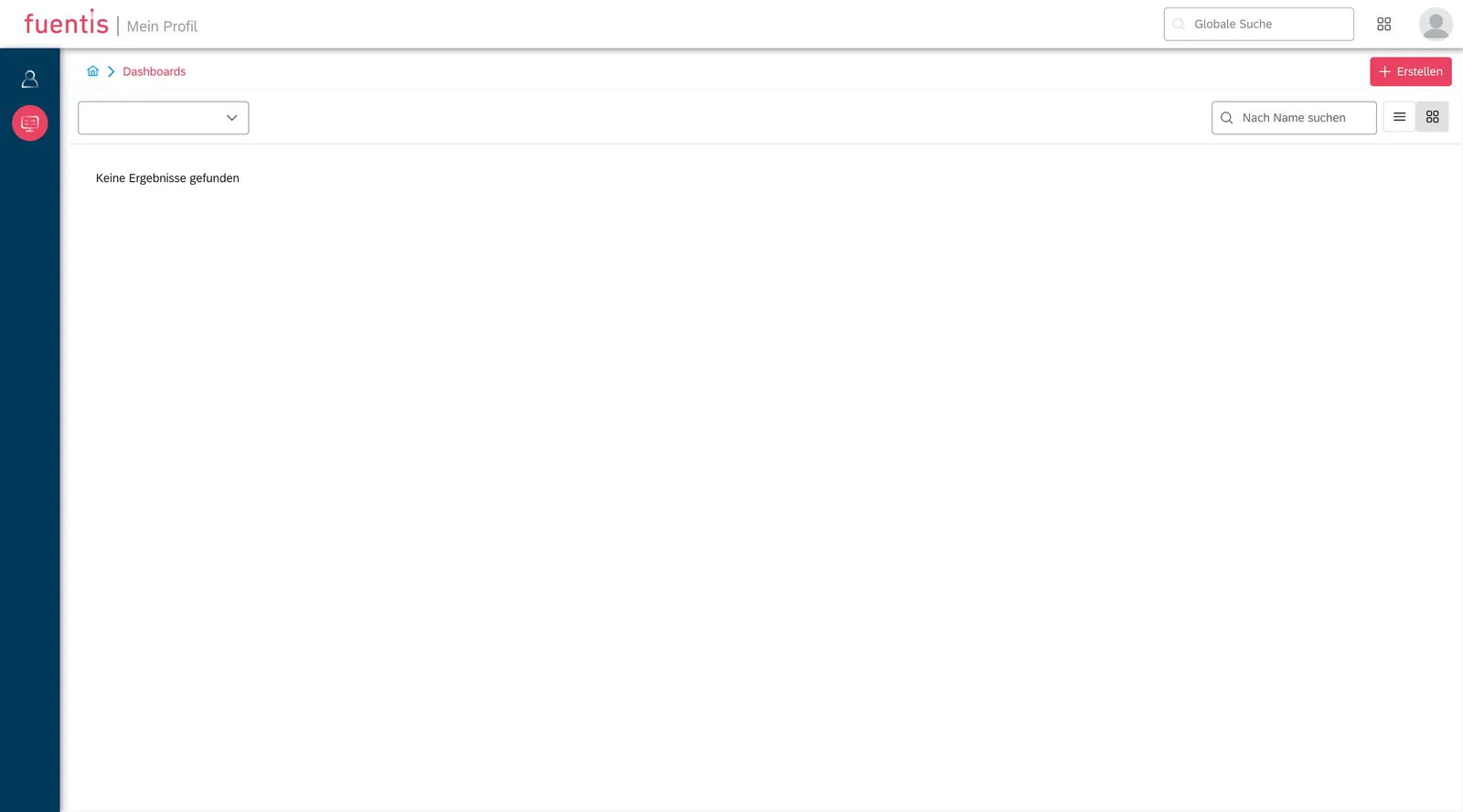
2.1 Creating a Dashboard
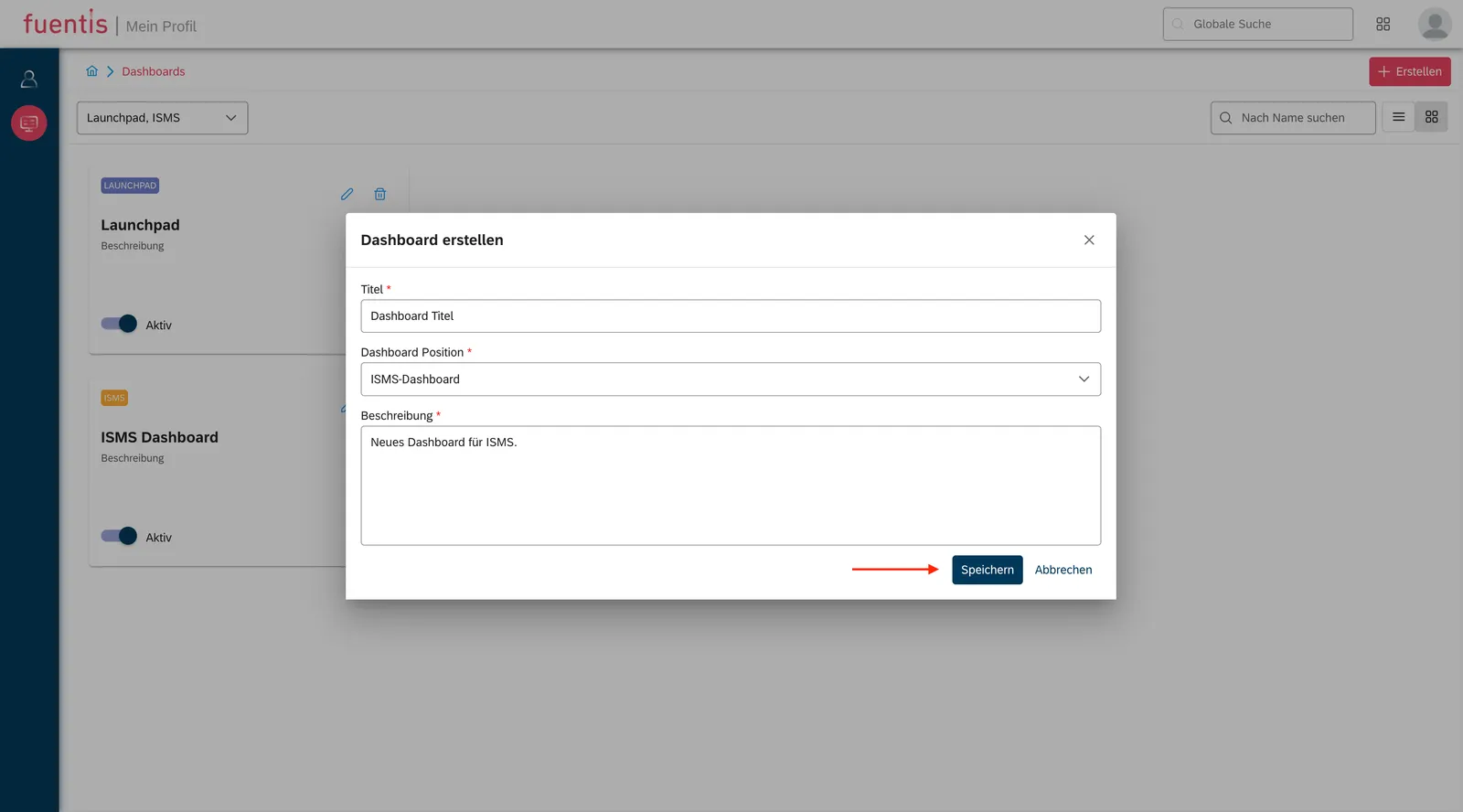
Section titled “2.1 Creating a Dashboard”Step-by-step:
- Navigation: User icon → Edit settings → Dashboards
- Creation: Click “Create”
- Naming: Provide a meaningful name and optional description
- Positioning: Choose between:
- ISMS Dashboard – specific to ISMS
- BCMS Dashboard – for Business Continuity Management
- Launchpad – cross-module overview
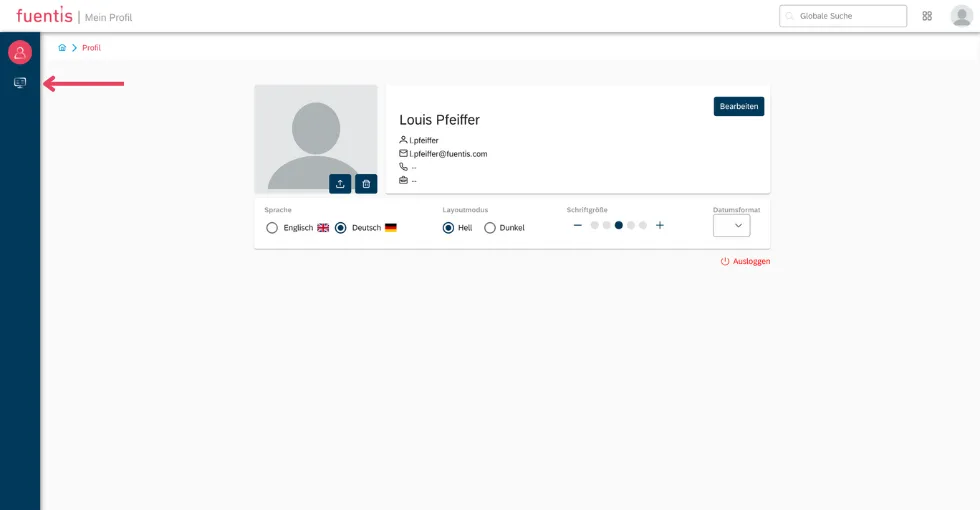
2.2 Configuring Dashboards
Section titled “2.2 Configuring Dashboards”After creation, you can add and configure widgets:
Available ISMS widgets:
- Modeling: Overview of modules, measures, requirements, controls
- Risk analysis: Inherent and residual risk display
- Measures by status: Implementation progress
- Requirements by status: Compliance overview
- Controls by status: Effectiveness checks
- My tasks: Personal to-do list
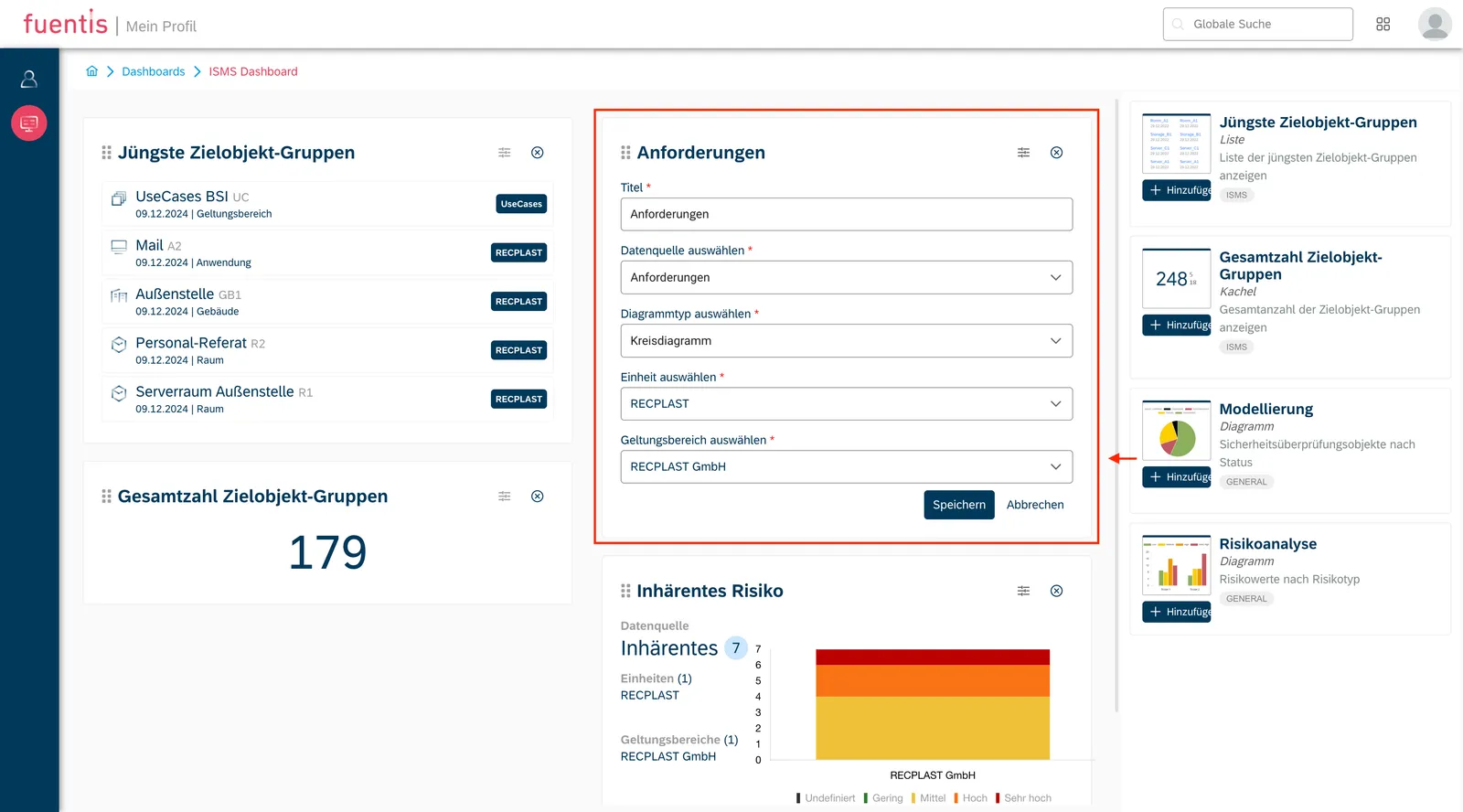
Widget configuration options:
- Data source: Choose the information to display
- Unit and scope: Filter by organizational unit
- Display form: Chart type, colors, sorting
Best practice: Start with 4–6 widgets and expand as your needs evolve.
2.3 Managing Dashboards
Section titled “2.3 Managing Dashboards”Activation/deactivation:
- Toggle switch at bottom left of dashboard card
- Only active dashboards appear in modules
- Multiple dashboards can be active in parallel
Editing:
- Pencil icon for name/description changes
- “Configure” for widget updates
- Drag & drop to rearrange widget positions
Deletion:
- Trash icon with confirmation dialog
- Deleted dashboards cannot be restored
3. Launchpad – The Central Homepage
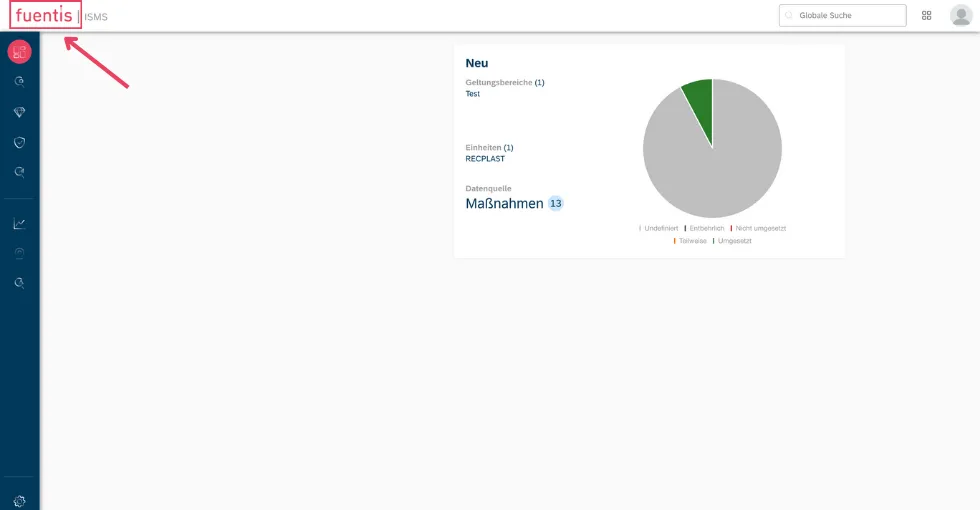
Section titled “3. Launchpad – The Central Homepage”The Launchpad is a cross-module overview page serving as the central entry point into the fuentis Suite. It provides quick access to modules and key information at a glance.
3.1 Launchpad Highlights
Section titled “3.1 Launchpad Highlights”Differences from dashboards:
- Scope: Entire fuentis Suite instead of a single module
- Widgets: Cross-module rather than module-specific
- Access: Via fuentis logo in the top-left
- Purpose: Starting point and navigation hub
3.2 Launchpad Widgets
Section titled “3.2 Launchpad Widgets”Quick Access:
- Configurable shortcuts to frequently used functions
- ISMS phase shortcuts
- Custom links (e.g., to Service Hub)
- Add via ”+” in widget
Recent Target Object Groups:
- Displays recently edited assets/scopes
- Quick re-entry into ongoing tasks
Cross-module statistics:
- Number of threats by risk value
- Target object groups by type
- Risks by inherent risk value
- Task overview across all modules
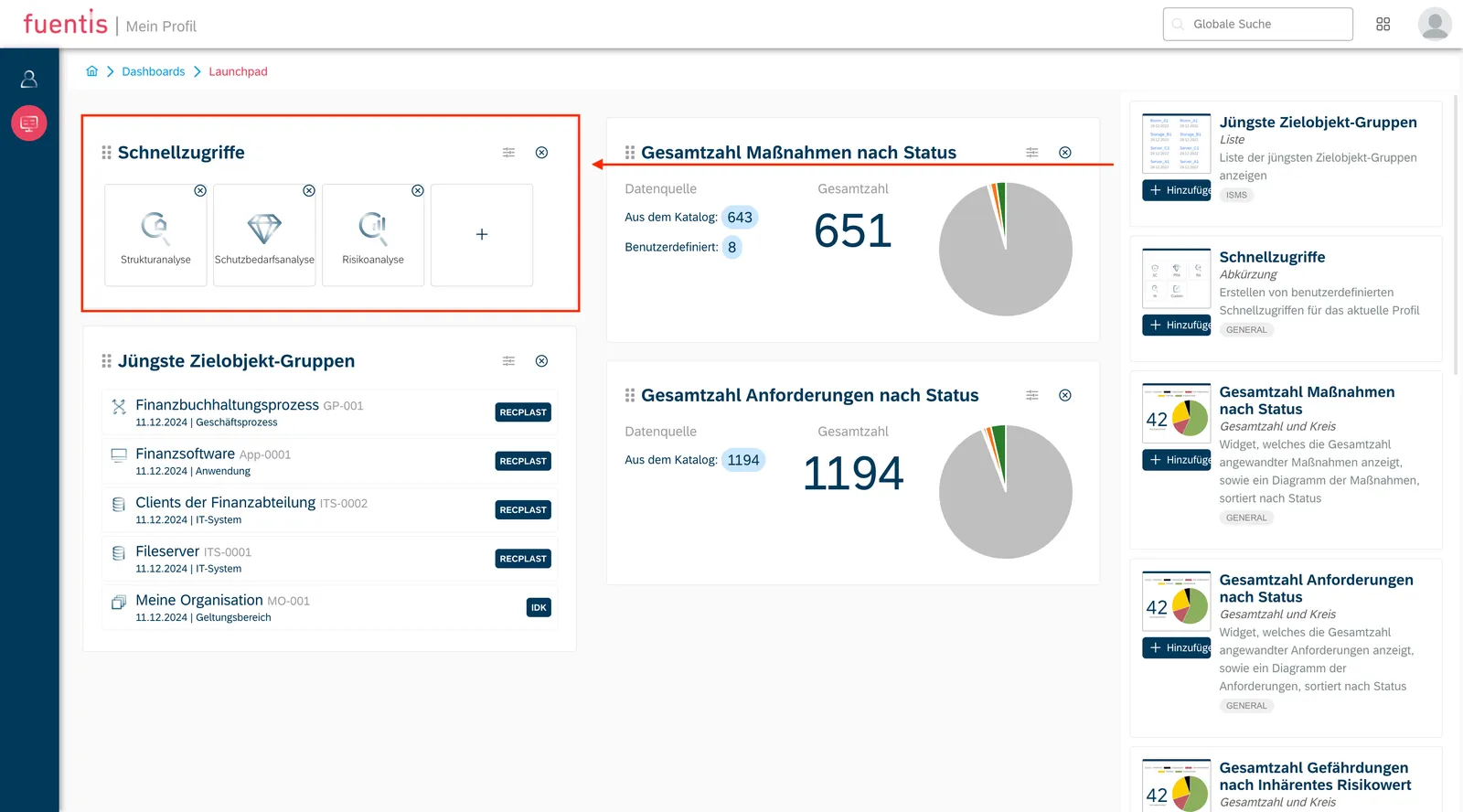
Other Launchpad widgets:
- Requirements count by status
- Measures count by status
- Threat count by inherent risk value
- Target object groups by type
- Risk count by inherent risk value
- My tasks – personal task list with direct links
- Control count by status
3.3 Launchpad Quick Start
Section titled “3.3 Launchpad Quick Start”Recommended setup:
- Quick Access widget with links to:
- All ISMS phases
- Service Hub (documentation)
- Frequently used reports
- Recent Target Object Groups for quick continuation
- My Tasks for personal task tracking
- Asset count by type for inventory overview
Implementation Aids and Best Practices
Section titled “Implementation Aids and Best Practices”Dashboard Quick Start Guide
Section titled “Dashboard Quick Start Guide”Suggested ISMS dashboard setup:
- Name dashboard and select ISMS dashboard position
- Arrange widgets in pairs (2 per row)
- Configure Modeling widget:
- Data source: Measures (ideal starting point)
- Filter by relevant scope
- Configure Risk analysis widget:
- Data source: Inherent risk
- Use same scope as Modeling widget
- Activate dashboard for immediate use
Dashboard Strategy
Section titled “Dashboard Strategy”For ISMS managers:
- Create separate dashboards for different ISMS phases
- Use risk widgets for management reporting
- Configure measure widgets for implementation control
For operational staff:
- Focus on “My tasks” and assigned measures
- Configure widgets for personal responsibilities
- Add quick access for frequently used functions
Widget Layout and Design
Section titled “Widget Layout and Design”Suggested structure:
- Row 1: High-level KPIs (2 widgets)
- Row 2: Detailed analysis (2 widgets)
- Row 3: Personal tasks/actions
Visual hierarchy:
- Place most important KPIs top left
- Group related widgets together
Collaboration and Standardization
Section titled “Collaboration and Standardization”Team dashboards:
- Develop standard dashboard templates per role
- Document widget configurations
- Share best practices within teams
Alignment with ISO 27001 and BSI IT-Grundschutz
Section titled “Alignment with ISO 27001 and BSI IT-Grundschutz”ISO 27001 Context
Section titled “ISO 27001 Context”Dashboard and personalization features support multiple ISO 27001 requirements:
A.5.1 Information Security Policies:
- Dashboards visualize policy compliance
- Measures show implementation progress
A.6.1 Internal Organization:
- Role-based dashboards for responsibilities
- Task widgets clarify accountability
A.18.2 Information Security Reviews:
- Risk widgets for ongoing monitoring
- Status dashboards for management reviews
BSI IT-Grundschutz Integration
Section titled “BSI IT-Grundschutz Integration”Module monitoring:
- “Modules” widget shows implementation status
- Requirements widget for Grundschutz checks
Protection needs analysis:
- Target object group widget for asset overviews
- Risk widgets for protection level assessments
How the fuentis Suite Supports You
Section titled “How the fuentis Suite Supports You”The fuentis Suite delivers significant value through personalization and dashboard features:
Compliance Support
Section titled “Compliance Support”- Dashboard screenshots for audits
- Historical views of progress
- Export functions for reporting
- Transparent status tracking
Integration and Interoperability
Section titled “Integration and Interoperability”- Unified interface across modules
- Consistent usability concepts
- Centralized user management
- Single Sign-On support
Additional Resources
Section titled “Additional Resources”Support
Section titled “Support”Key Takeaways at a Glance
Section titled “Key Takeaways at a Glance”- Personalization increases efficiency: Custom UI settings and dashboards reduce workload and improve ISMS clarity.
- Dashboards visualize compliance: Widget-based display of measures, risks, and controls makes ISO 27001 compliance transparent.
- Launchpad as the central entry point: Provides quick access to ISMS functions and reduces navigation effort.
- Role-based configuration: Dashboards tailored to responsibilities support focused work without overload.
- Continuous optimization: Dashboards should be updated regularly to meet evolving needs; the fuentis Suite offers flexible, no-code customization.