

Workflow Management
The workflow functionality of the fuentis Suite enables organizations to individually design and automate their ISMS processes. Instead of rigid procedures, the system offers flexible, customizable process models for different requirements – from protection needs assessment according to BSI-Grundschutz to general task management.
Core Benefits of Workflow Automation:
- Standardization of recurring processes
- Transparent traceability of states and transitions
- Compliance-compliant documentation of approval steps
- Reduction of manual errors through defined process steps
- Integration into existing ISMS phases
Practical Tip: Start with simple workflows and expand them step by step. An initial standard workflow is already available and can serve as a starting point.
Workflow Categories and Their Areas of Application
Section titled “Workflow Categories and Their Areas of Application”1. General Workflows
Section titled “1. General Workflows”Area of Application: Support module “Tasks”
Main Features:
- Foundation for task management
- Each task field is assigned a workflow
- Standard states: To Do, In Progress, Done
- Flexible expansion with any intermediate states possible
Typical Use Cases:
- Incident Management
- Change Requests
- Project Tasks
- Audit Measures
2. Workflows for Protection Needs Assessment
Section titled “2. Workflows for Protection Needs Assessment”Area of Application: ISMS phase “Protection Needs Assessment”
Main Features:
- Specialized for BSI-Grundschutz requirements
- Integration into the protection needs analysis process
- Documentation of review steps
- Traceable approval chain
Typical Use Cases:
- Evaluation of target object groups
- Release processes for protection needs
- Four-eyes principle for critical assets
Structure and Design of Workflows
Section titled “Structure and Design of Workflows”Basic Elements of a Workflow
Section titled “Basic Elements of a Workflow”1. States
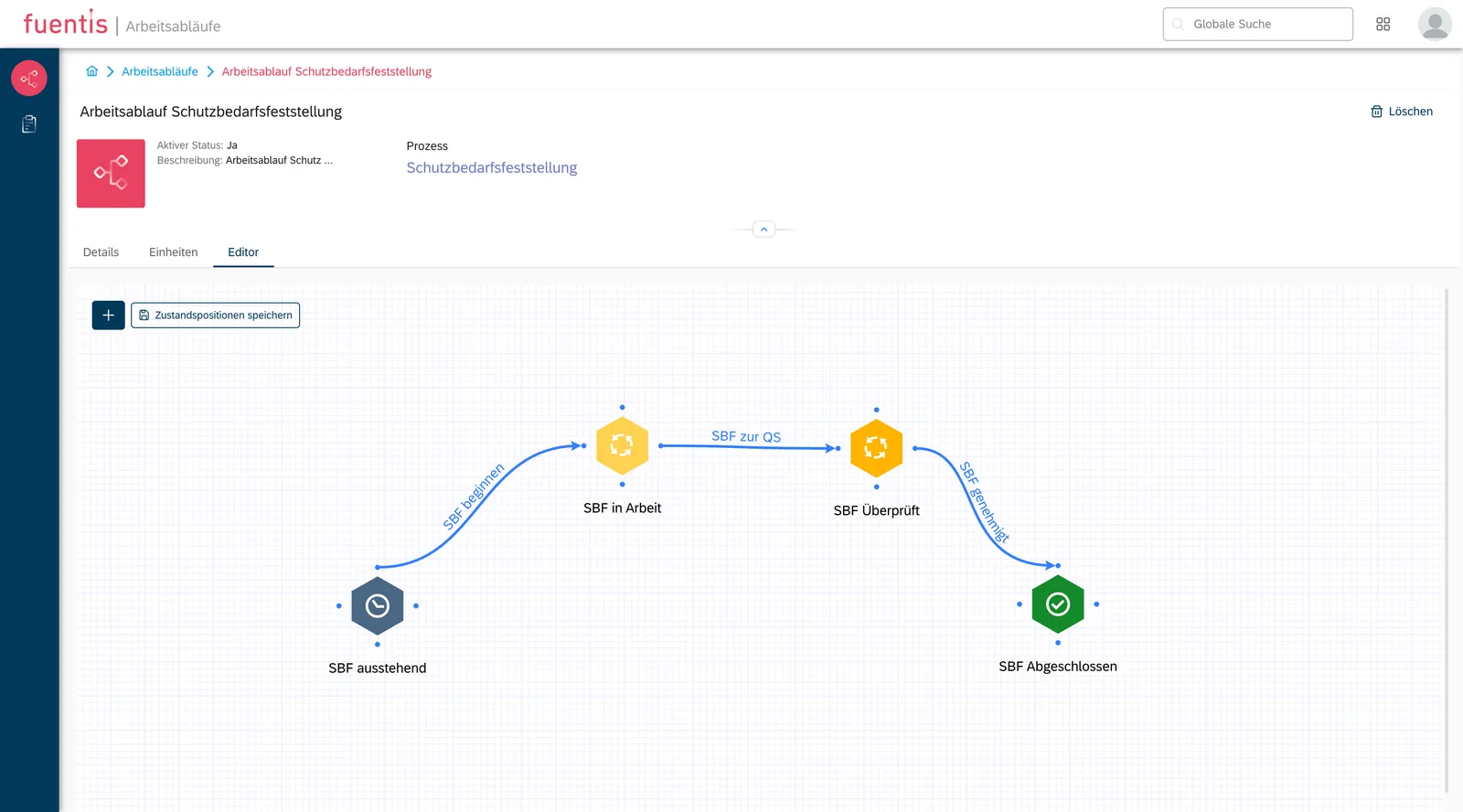
Section titled “1. States”Each workflow consists of defined states that an object can go through:
- To Do: Initial state, task awaiting processing
- In Progress: Active processing in progress
- Done: Final state, process completed
- Custom States: Expandable as needed (e.g., “Review”, “Waiting for Approval”)
2. Transitions
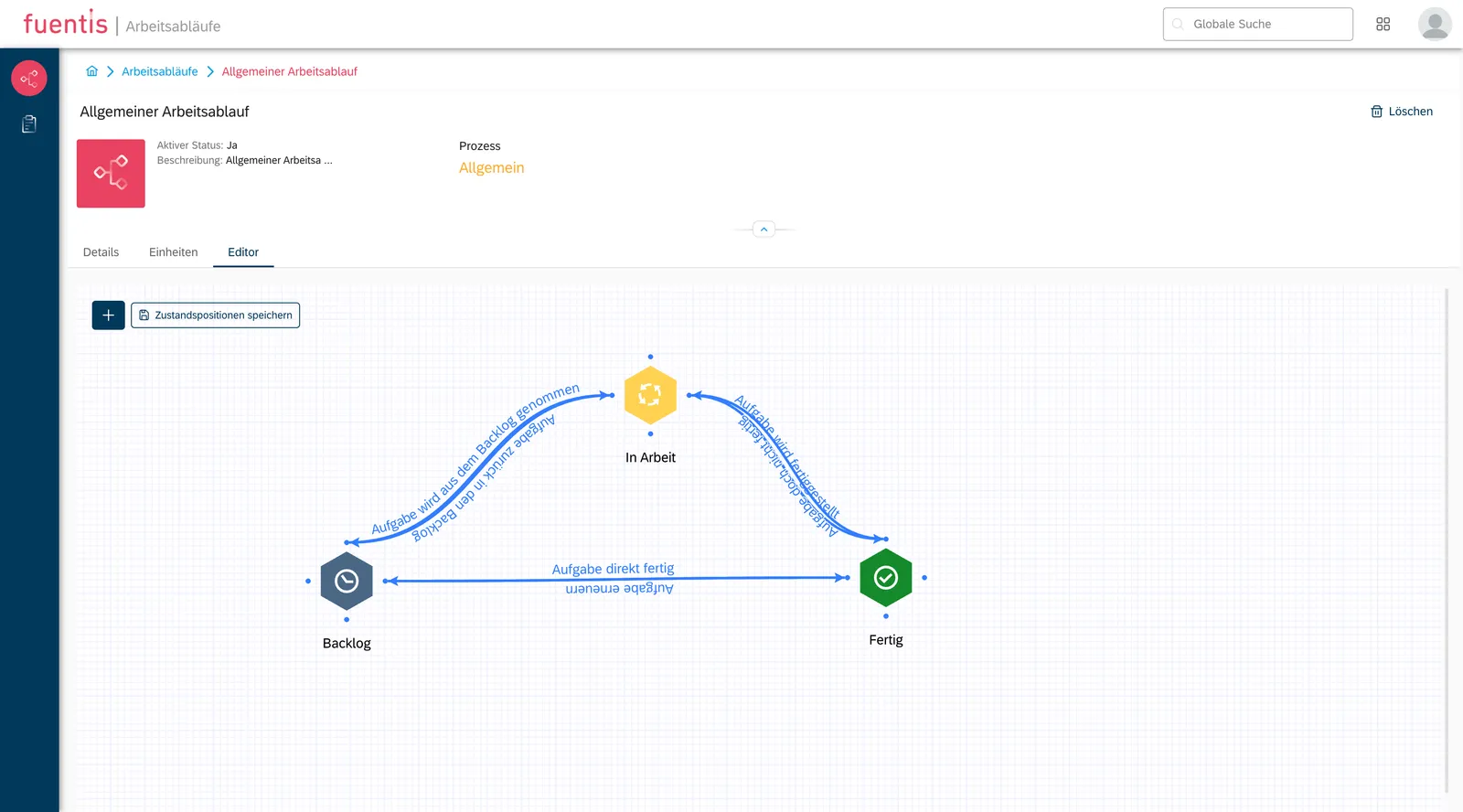
Section titled “2. Transitions”Connections between states define possible process steps:
- Unidirectional Transitions: Only forward movement possible
- Bidirectional Transitions: Forward and backward movement allowed
- Conditional Transitions: Dependent on permissions or criteria
3. Task Types
Section titled “3. Task Types”- Review: For release processes and quality assurance
- Task Management: For operational activities
Visualization in the Editor
Section titled “Visualization in the Editor”The graphical workflow editor enables:
- Drag-and-drop positioning of states
- Visual connection through click actions
- Color coding by categories
- Export/Import of workflow definitions
Best Practice: Additionally document complex workflows in a process manual to explain the business logic behind the technical procedures.
Workflow Creation: Step-by-Step Guide
Section titled “Workflow Creation: Step-by-Step Guide”Phase 1: Workflow Basic Configuration
Section titled “Phase 1: Workflow Basic Configuration”- Navigate to Support Module “Workflow”
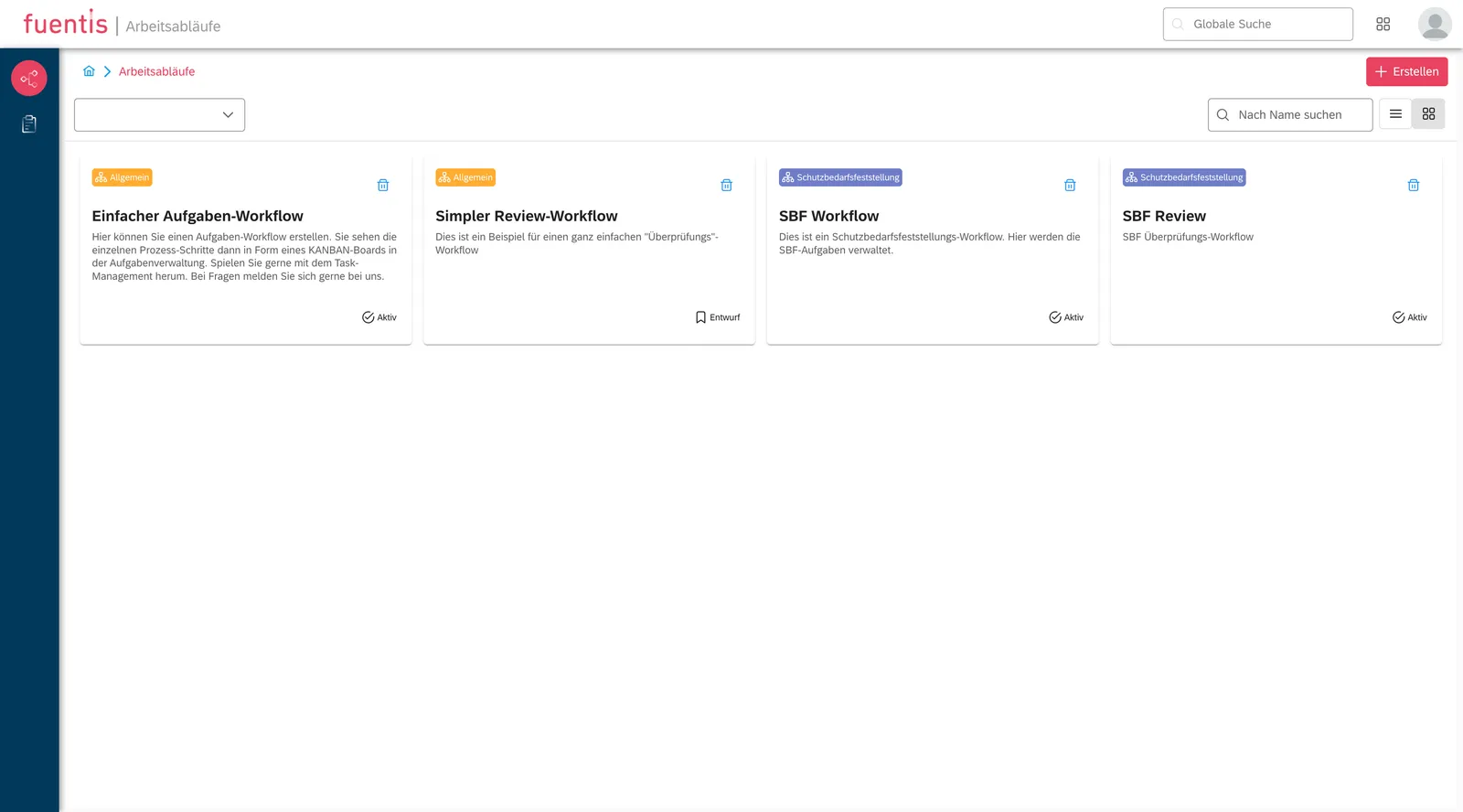
- Click on “Create” button (top right)
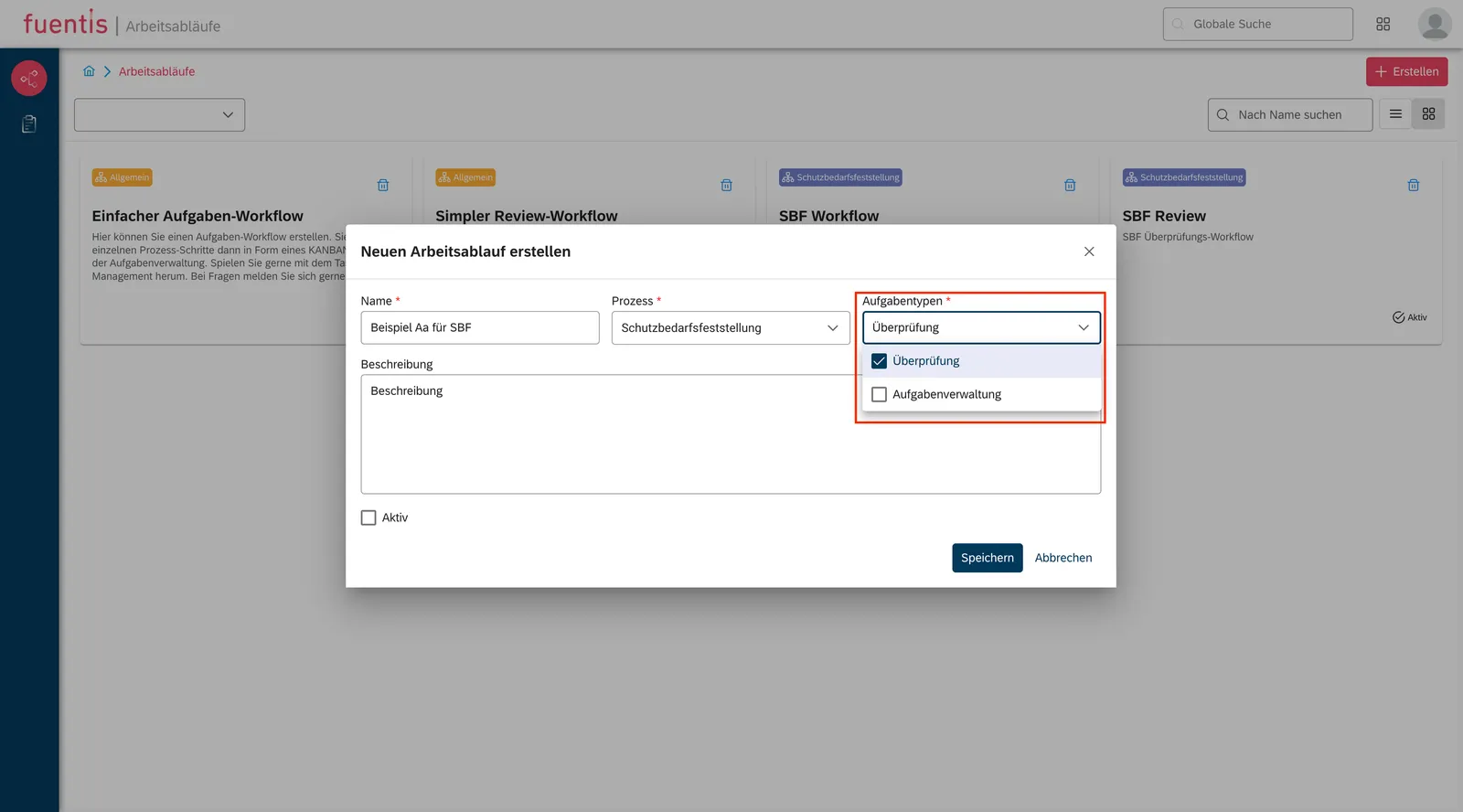
- Select Process Assignment:
- “General” for task management
- “Protection Needs Assessment” for ISMS processes
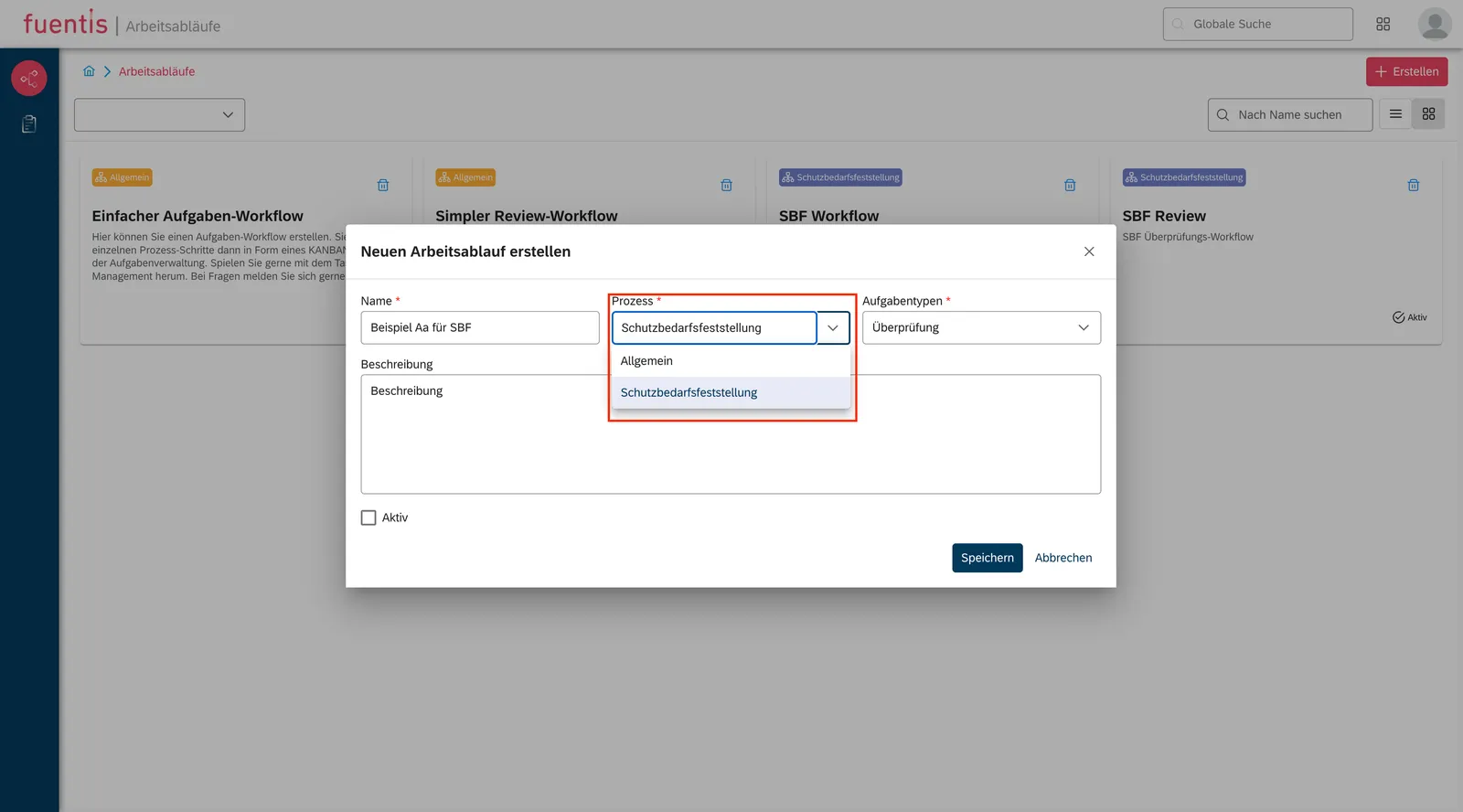
- Define Task Type:
- “Review” for review processes
- “Task Management” for operational tasks
-
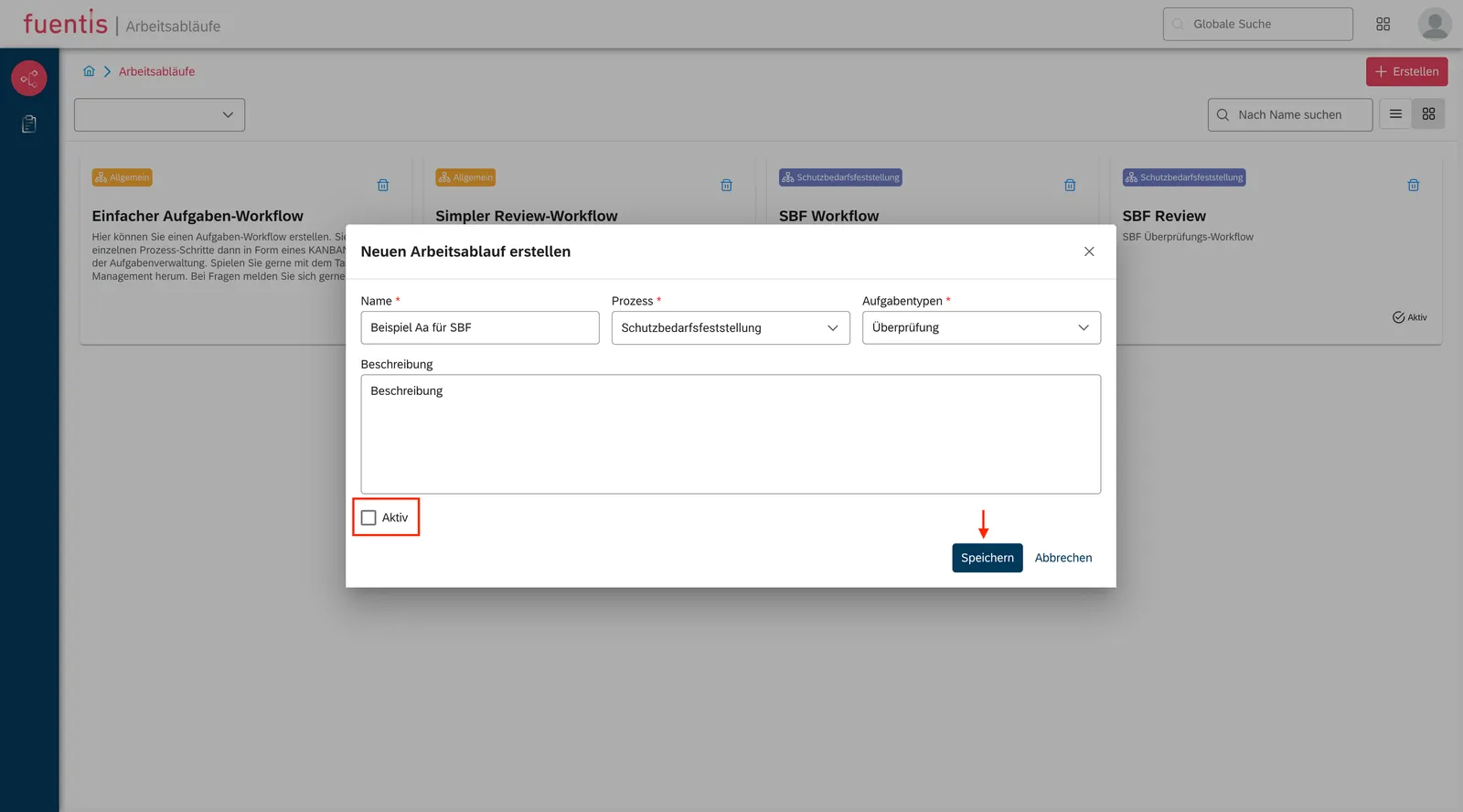
Add Description (optional but recommended)
-
Activation: “Active” checkbox for immediate use
Phase 2: Unit Assignment
Section titled “Phase 2: Unit Assignment”- Switch to “Unit” tab
- Click “Add Unit”
- Select Organizational Unit:
- Department/Team
- Location
- Business Area
Phase 3: Workflow Design in Editor
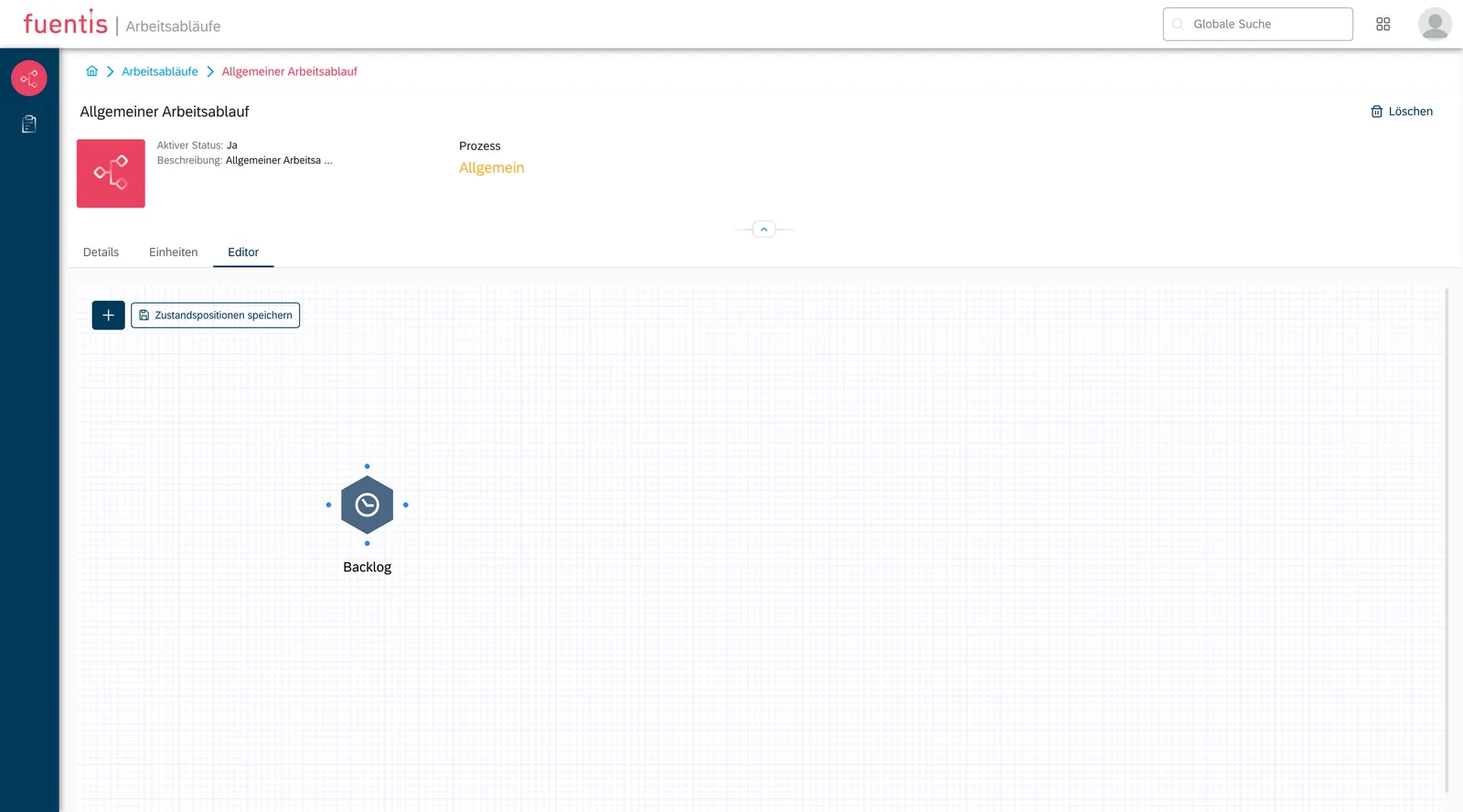
Section titled “Phase 3: Workflow Design in Editor”Create States:
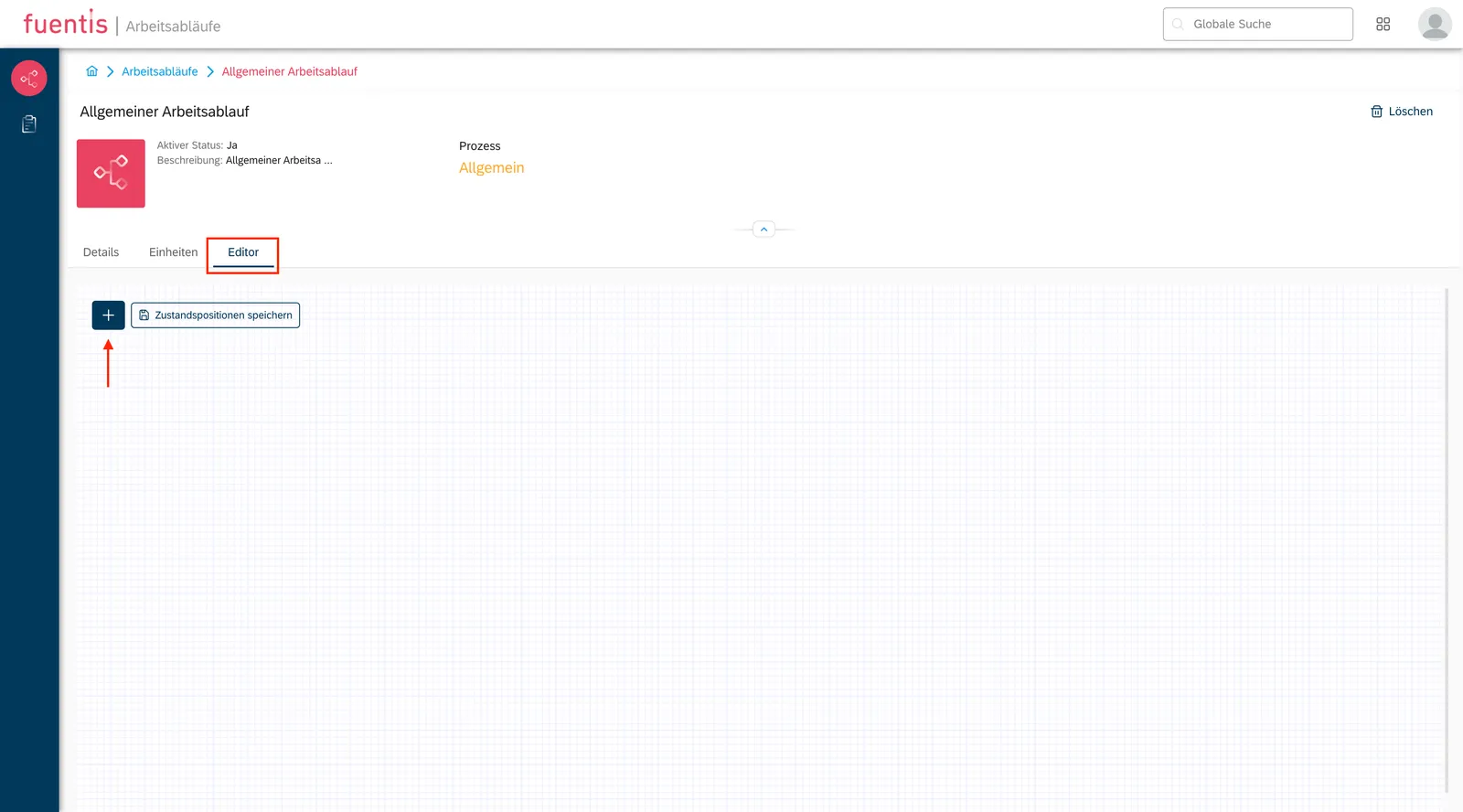
Section titled “Create States:”- Click ”+“-symbol for new state
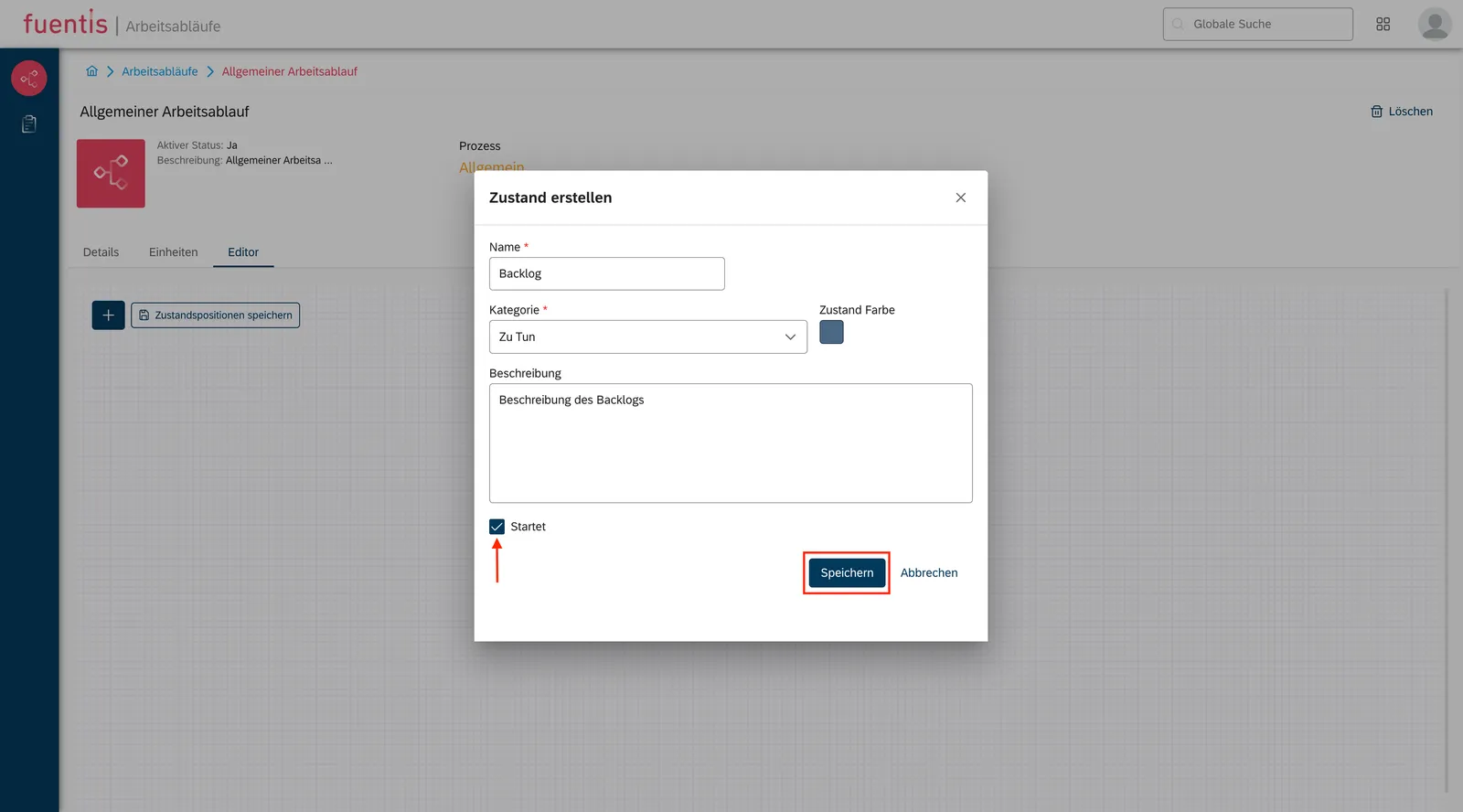
- Name State (e.g., “Protection Needs Assessment pending”)
- Choose Category (To Do/In Progress/Done)
- Adjust Color (optional)
- “Starts”-checkbox for initial state
- Save
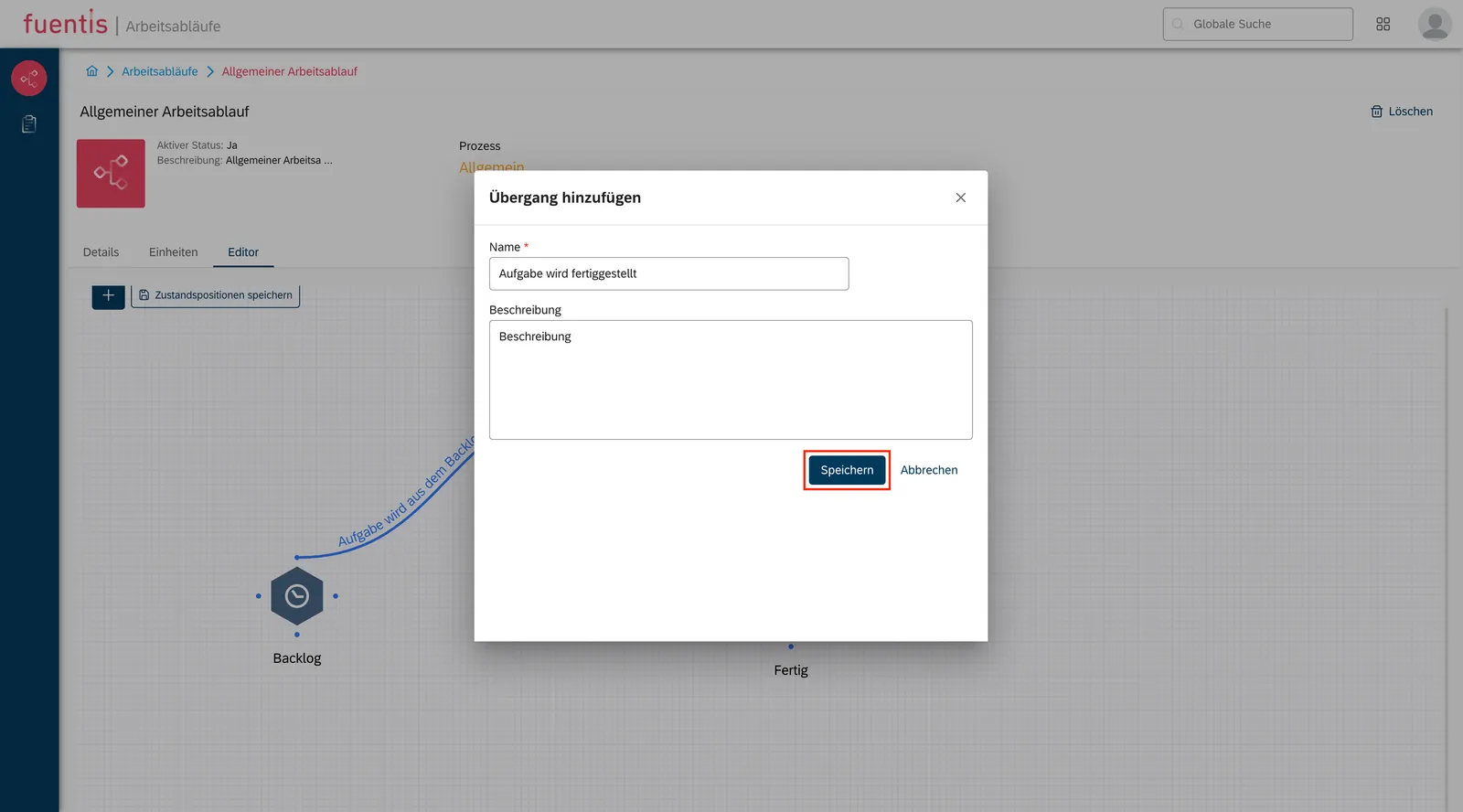
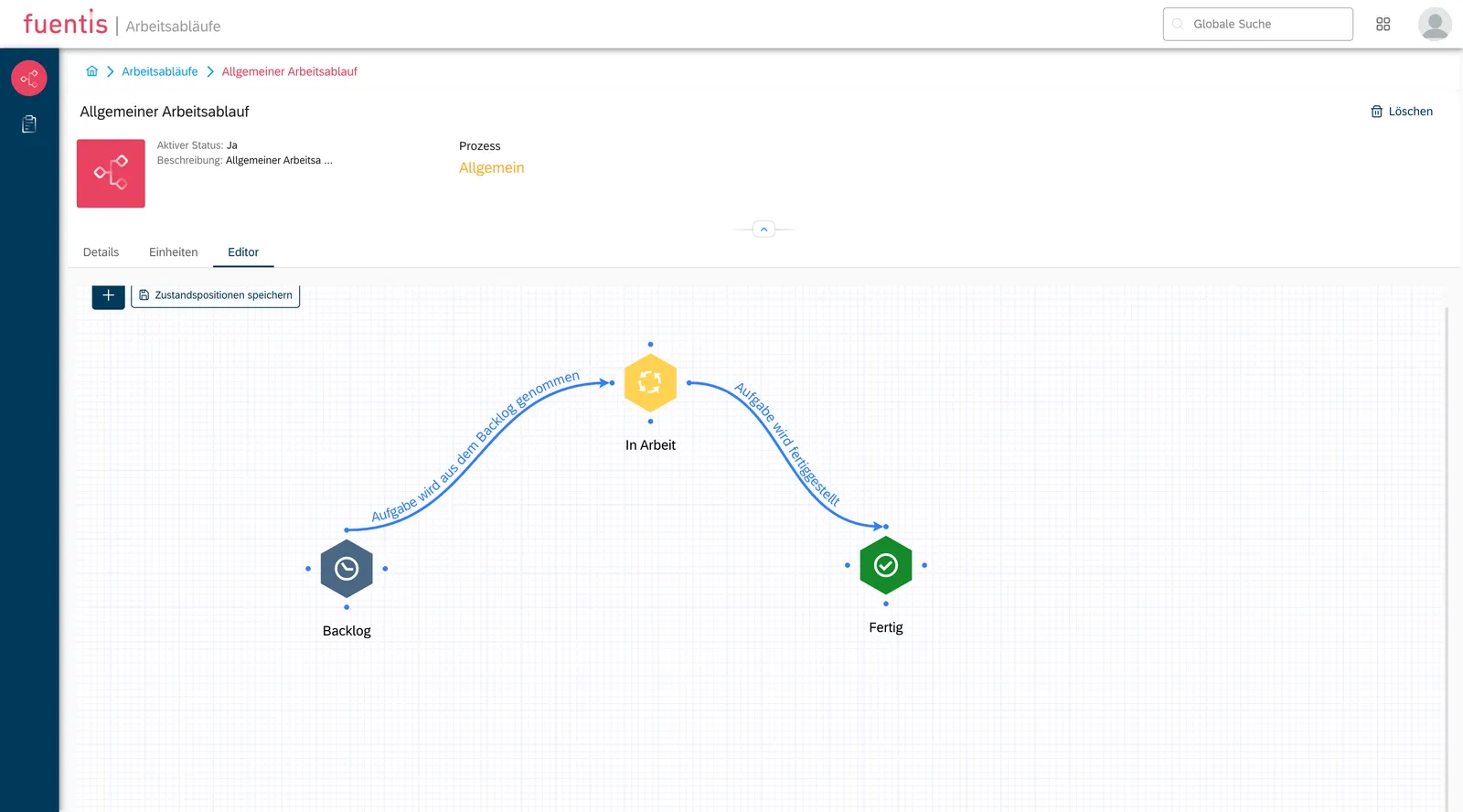
Define Transitions:
Section titled “Define Transitions:”- Click blue connection points on the source state
- Choose target state by clicking on its connection point
- Name Transition (e.g., “Start Protection Needs Assessment”)
- Add Description (optional)
- Save
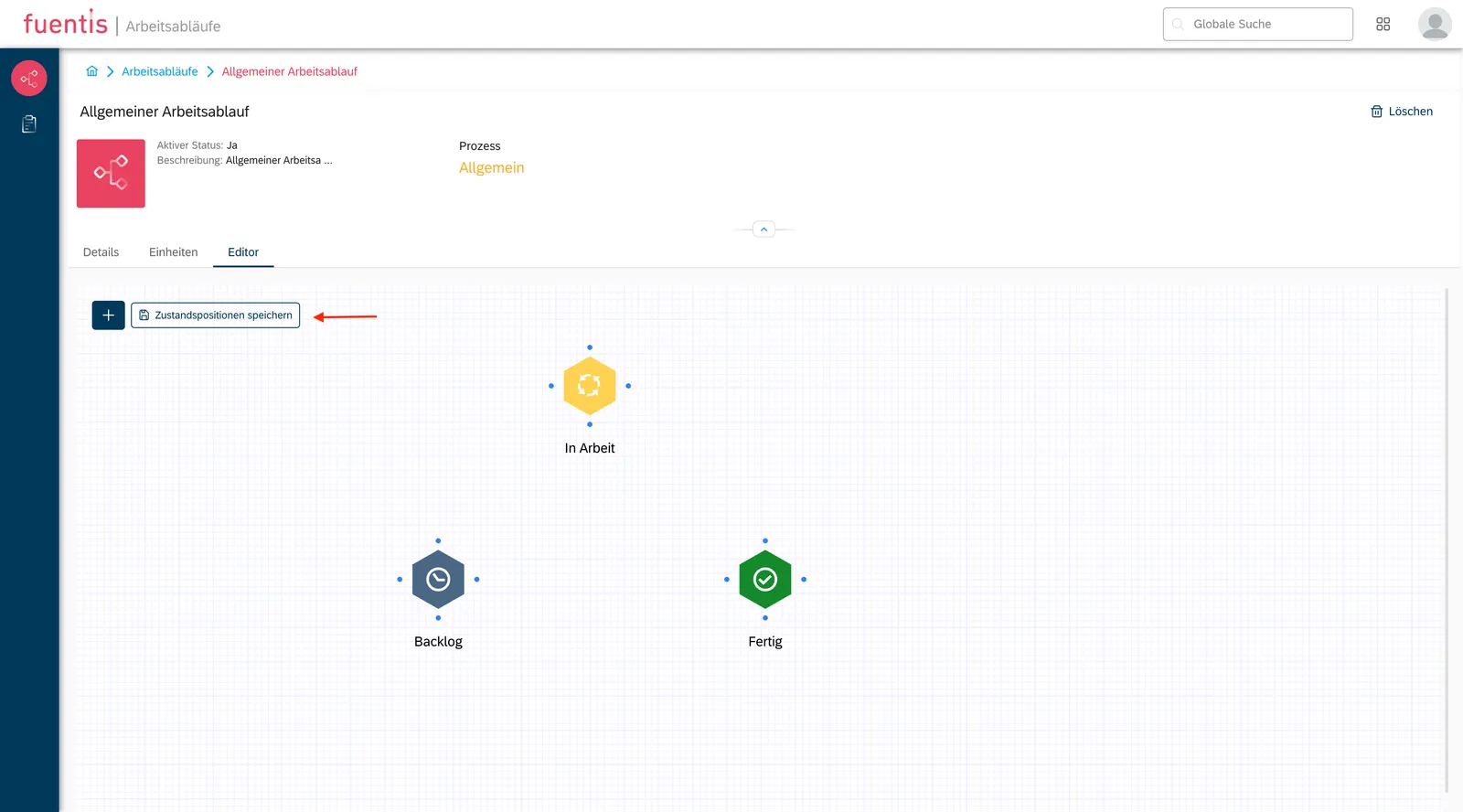
Save Positions:
Section titled “Save Positions:”- “Save State Positions” before leaving the editor
Important Note: When activating a custom workflow, all previous states of the affected objects are lost. Plan migrations carefully!
Integration into ISMS Processes
Section titled “Integration into ISMS Processes”Protection Needs Assessment with Workflows
Section titled “Protection Needs Assessment with Workflows”Integration Process:
- Open ISMS Module
- Select “Protection Needs Assessment” phase
- Select Target Object Group
- Status corresponds to workflow start state
- “Approval” for state transition
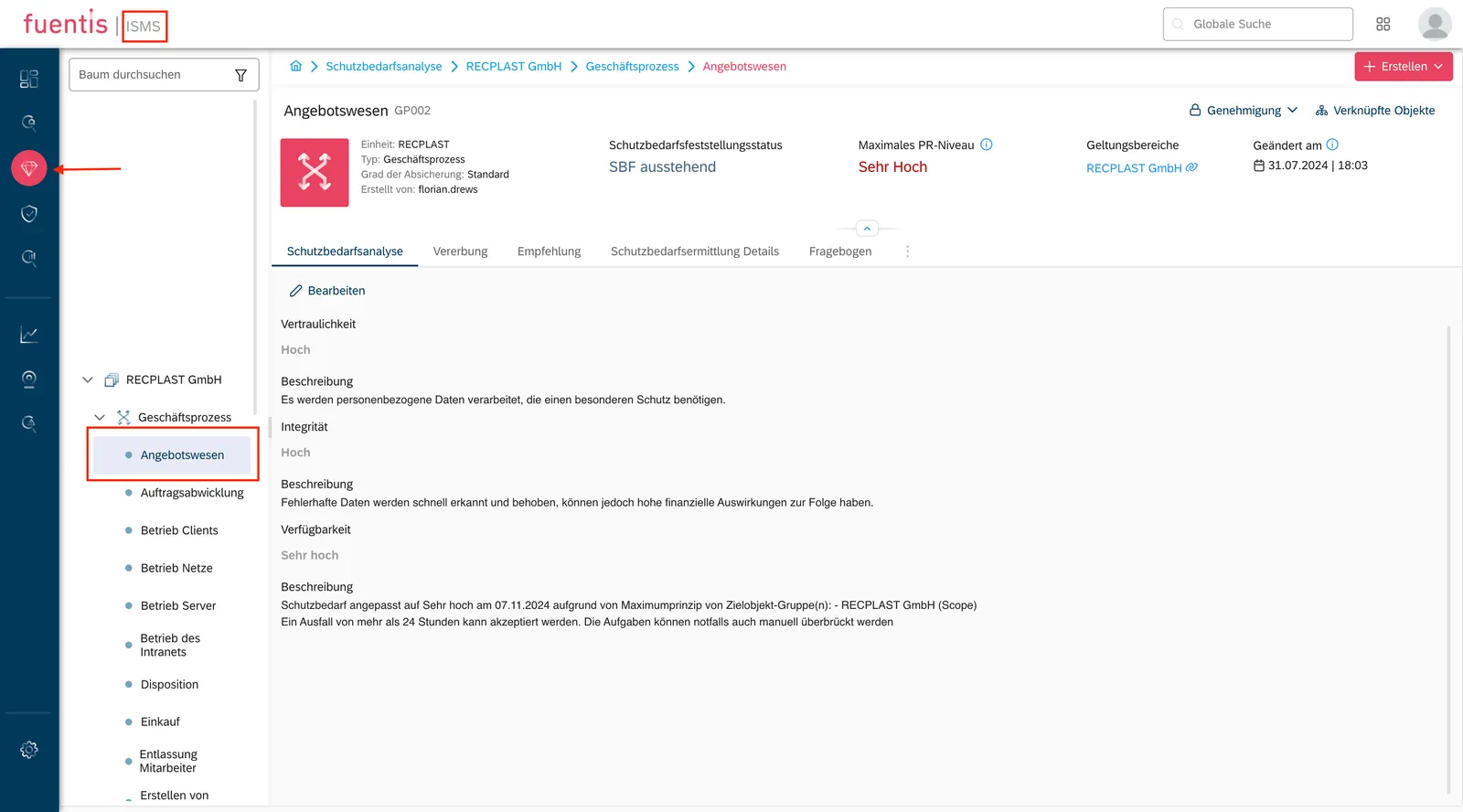
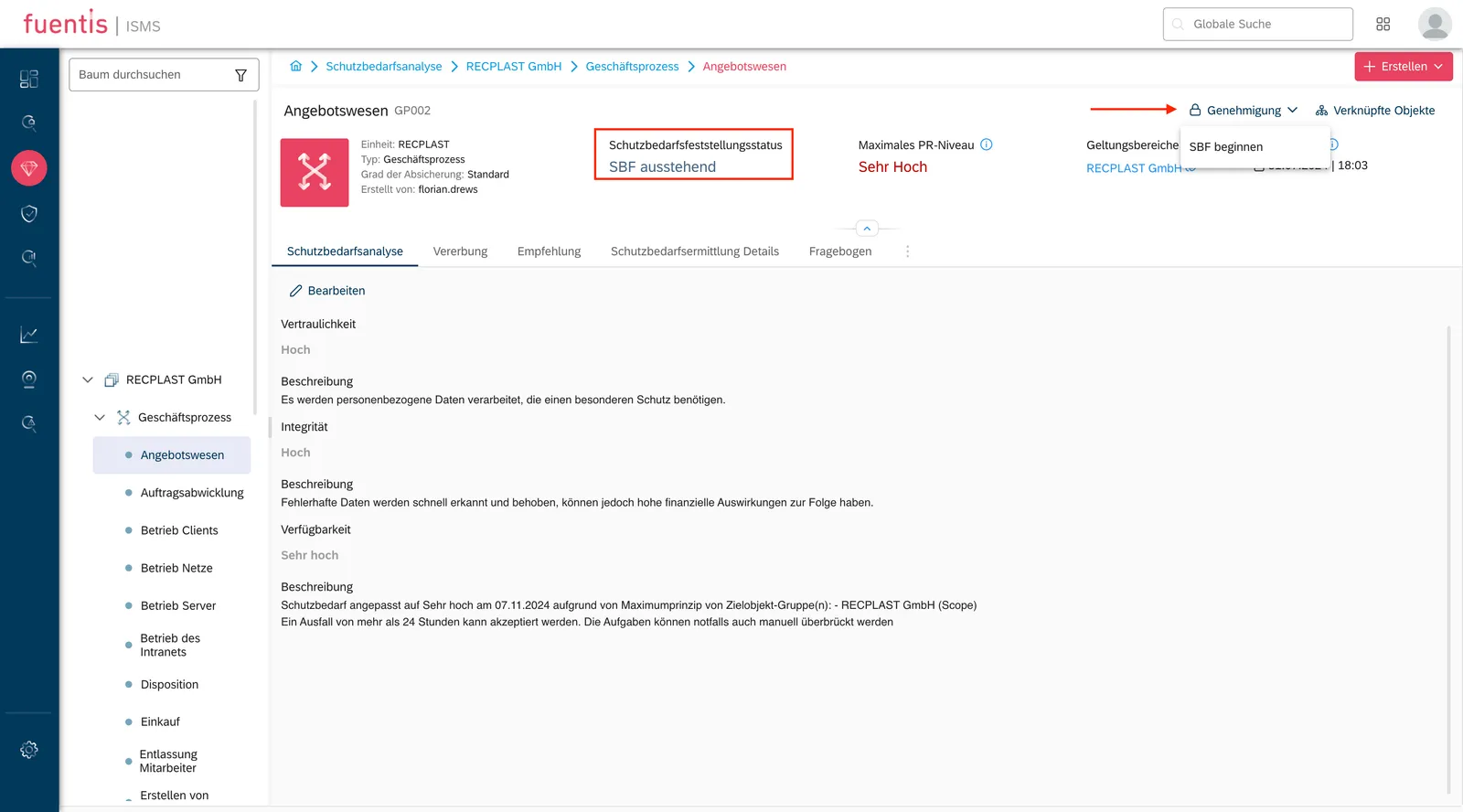
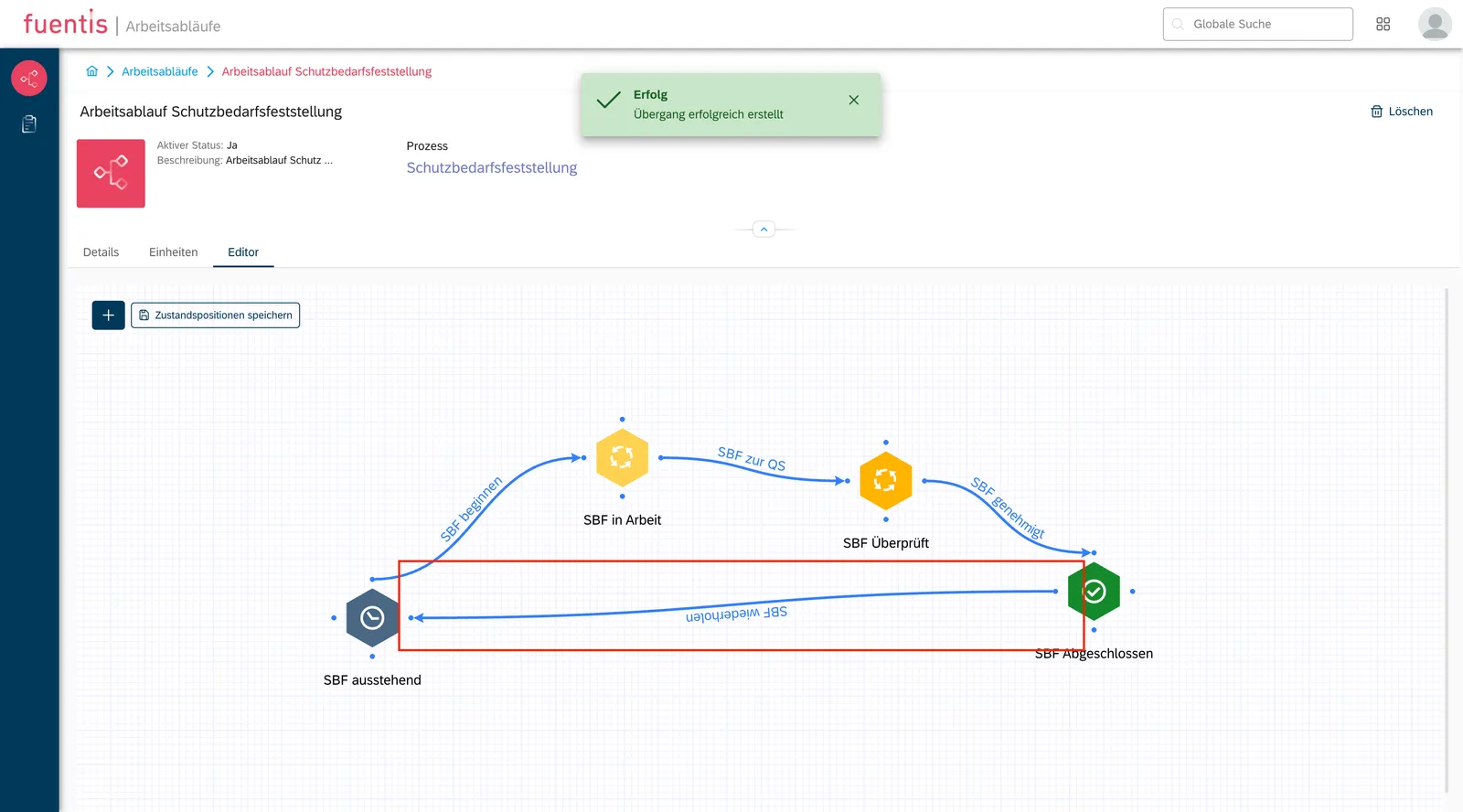
Practical Example:
Start State: "Protection Needs Assessment pending" ↓ [Start Protection Needs Assessment]Intermediate State: "Protection Needs Assessment in progress" ↓ [Complete Protection Needs Assessment]End State: "Protection Needs Assessment completed" ↓ [Re-examination] (optional)Start State: "Protection Needs Assessment pending"Task Management with Workflows
Section titled “Task Management with Workflows”Kanban Board Integration:
- Visual representation of workflow states as columns
- Drag-and-drop of tasks between states
- Filtering by task fields
- Permission-controlled transitions
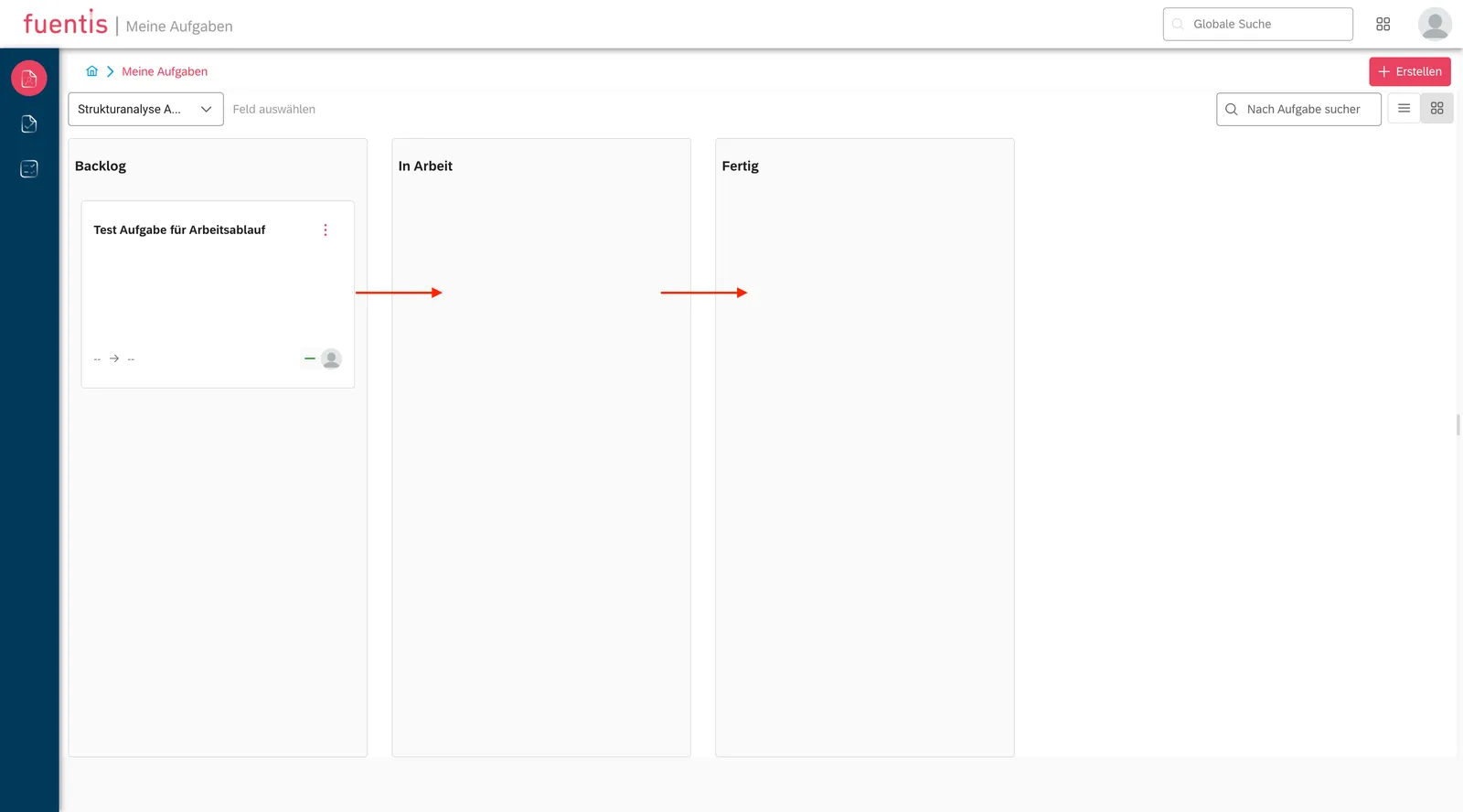
Prerequisites:
- Create task field with workflow assignment
- Assign tasks to the task field
- Activate Kanban view
- Set task field filter
Best Practices for Effective Workflows
Section titled “Best Practices for Effective Workflows”1. Workflow Design Principles
Section titled “1. Workflow Design Principles”Keep it Simple:
- Maximum 5-7 states per workflow
- Clear, self-explanatory labels
- Avoidance of redundant transitions
Ensure Completeness:
- Map all realistic scenarios
- Enable returns for corrections
- Define escalation paths
Practical Tip: First implement workflow changes in a test environment and simulate critical processes before going live.
Common Challenges and Solution Approaches
Section titled “Common Challenges and Solution Approaches”Problem 1: Missing Return Options
Section titled “Problem 1: Missing Return Options”Symptom: Tasks cannot be reset to previous states
Solution:
- Open editor
- Add bidirectional transitions
- Create connections in both directions
Problem 2: Workflow Activation Fails
Section titled “Problem 2: Workflow Activation Fails”Possible Causes:
- No start state defined
- Missing unit assignment
- Conflicts with other active workflows
Solution Steps:
- Check start state checkbox
- Review units tab
- Deactivate other workflows for the same unit
Further Resources
Section titled “Further Resources”Key Points at a Glance
Section titled “Key Points at a Glance”✓ Two Workflow Types: General workflows for task management and specialized workflows for protection needs assessment
✓ Graphical Editor: Intuitive workflow creation through drag-and-drop with visual state modeling
✓ ISMS Integration: Seamless integration into existing ISMS processes with compliance-compliant documentation
✓ Flexibility: Fully customizable states and transitions for individual business processes
✓ Best Practice: Start with simple workflows, gradual expansion, and testing before going live